Chapter 3
The DSlot shelf
Pages and tabs, the system picker, system cards, resume points, carts and boxes, the menu and its settings.
On this page
DSlot is what the DSlot edition starts into. The touch screen holds your games as carts above a card slot; the top screen shows the selected game’s box, how long you have played it and your rating. Push a cart into the slot to play.
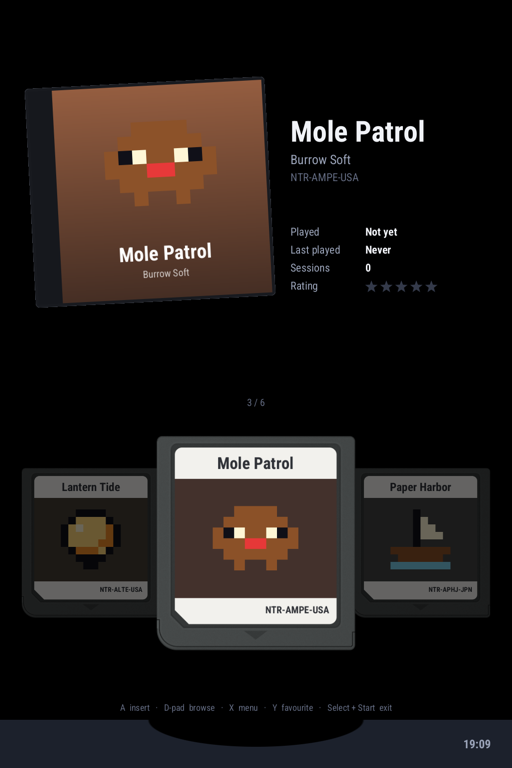
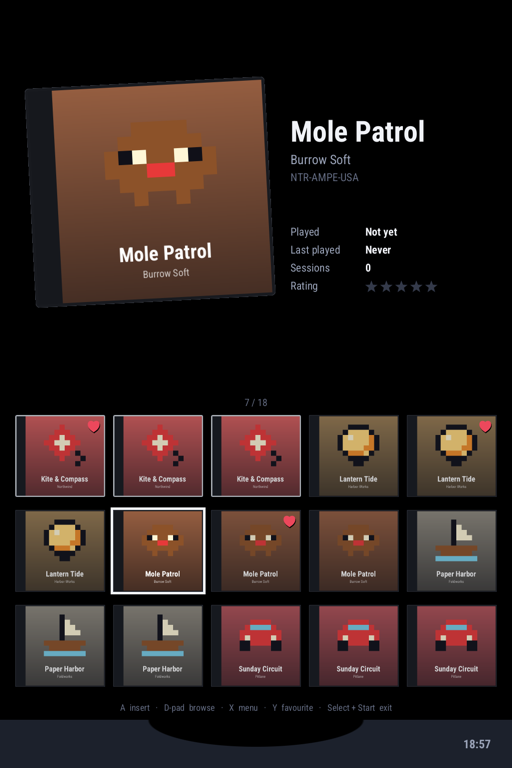
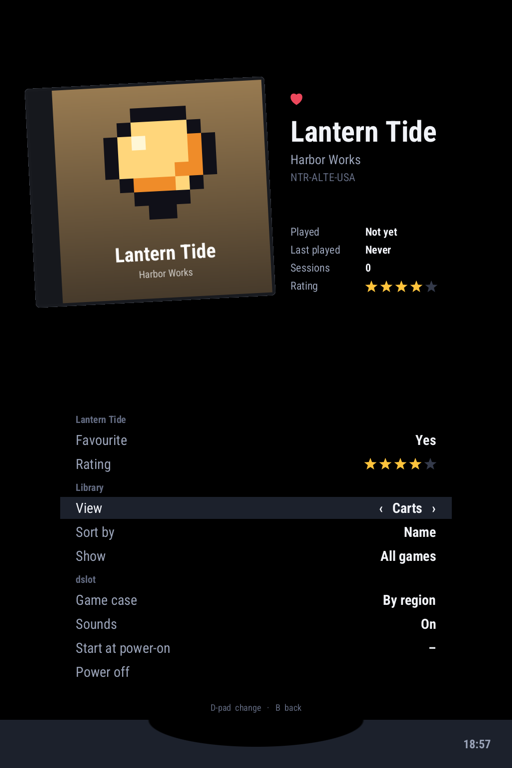
The pictures use made-up games. With your own games and box art, the shelf shows those.
Pages and tabs🔗
The shelf has a page for each system that has an emulator installed and games on a card:
DS, GBA, Game Boy, Game Boy Color, SNES, NES and the rest (the full list).
A page with no games isn’t shown; DSlot’s menu (X) → System → Show systems with no games shows
the empty ones too. Two more pages hold things that aren’t consoles: Ports, PortMaster’s
games (PortMaster), and Apps, programs installed on the system or
put in APPS on a card.
- L / R step through the pages, round from the last to the first.
- Tap a tab at the top of the touch screen to go to its page. When there are more tabs than fit, the strip scrolls with the page; tap a faded end to see more.
DSlot remembers the page, and coming back from a game opens the page it was on.
The system picker🔗
Press Select for the system picker: a stack of blades, one for each page, each in its system’s colour with box art from one of its games. The chosen blade shows how many games the system has and when you last played one, and the top screen shows the system’s card.
- Up / Down, or drag: choose a system.
- A, or tap: go to its page.
- B or Select: close the picker.
System cards🔗
A system card is a Top Trumps style card for a console: its maker, stats (released, launch price, units sold, processor, memory, screen, games) with bars comparing the systems, a short history, a fun fact, a photo of the console, and what is on your cards for it. Every figure comes from the source printed on the card; the photos are public domain or Creative Commons, credited on each card.
The Apps page’s card is about the device you are holding: its chip, memory and screens, the system and when it was built, the battery, the room left on each card, how long it has been on, the time played in all and the game played most.
The top screen🔗
The selected game’s box, its name, its play time, when it was last played, how many sessions and your rating.
Resume points. When you leave a game, its emulator saves where you were, and the next start carries on from there. The shelf shows that point as a small picture inset over the box’s bottom right corner, with a Resume tag and when it was saved (for a DS game, both screens, one above the other). To start a game from the beginning instead, clear its resume point: DSlot’s menu (X) → Game → Clear resume state.
Carts, boxes and lists🔗
The touch screen shows a page in one of four views, set in the menu (X), for every page or one console:
| View | |
|---|---|
| Carts | Carts over the slot. Tap a neighbouring cart to bring it to the middle. |
| Cover grid | Box covers, several rows. |
| List | Names only. |
| List with covers | Names with a small box beside each. |
The grid and the lists scroll with momentum under a finger: flick, and touch to stop.
Carts are drawn for the DS, GBA, Game Boy, Game Boy Color, SNES, NES, Mega Drive, Game Gear and Atari Lynx; the other systems show boxes. With no artwork of your own, every cart gets a sticker printed from what the game file itself carries (its title, icon and code), and every box is drawn from the same. To use your own:
| Put | In | For |
|---|---|---|
| Box fronts | Imgs/ beside the games, named as the game file (Roms/NDS/Imgs/My Game.png) | Boxes and covers |
| Labels | Labels/ beside the games | The cart’s sticker |
| Finished carts | Carts/ beside the games | A whole cart, drawn as it is |
Cart Studio. Labels and cart shells made with slot CFW’s
Cart Studio work as they are: its Labels/GBA/…, Labels/GB/…,
Labels/GBC/… folders at a card’s root, and cart_shell.txt, which gives a game’s cart a
shape, colour and finish (solid, clear or glitter). A card set up for slot CFW works as it is
beside nibOS’s layout (Games, BIOS and saves).
Sizes and every detail: DSlot’s artwork guide.
Favourites, ratings and sorting🔗
- Y marks a game as a favourite, or unmarks it.
- The rating is in DSlot’s menu (X) → Game → Rating.
- The menu’s Sort by is name, recently played or rating; Show is all games or favourites.
The menu🔗
X opens the menu on the touch screen. It has a page for each level of settings:
| Page | Holds |
|---|---|
| Game | The selected game: favourite and rating; the emulator it starts in, and that emulator’s options for it; Clear resume state; Delete saves (each asks first: A, then A again). |
| The console (DS, GBA, …) | Every game of that system: the emulator (when more than one is installed), its options, and how the page is shown (View, Sort by, Show, Game case). |
| System | How every page is shown; sounds; button repeat; the screensaver; the volume, each screen’s brightness, Wi-Fi, the battery and battery protect, the speaker tuning; Rescan games; Start at power-on; Power off. |
| Wi-Fi, Bluetooth | The radios (Wi-Fi and Bluetooth). |
| Update | System updates: the version running, checking, downloading and installing a newer one, going back (Updates). |
L / R or a tap on a tab changes page; Up / Down picks a row; Left / Right, A or a tap changes it; B closes the menu.
How settings inherit. A setting for a game wins over its console’s, which wins over the system’s. A row that isn’t set at its level shows where its value comes from, muted: Use GBA (Light), Use default (Name). Y on a row set at this level clears it, so it inherits again.
The status bar at the bottom of the touch screen shows the battery, Wi-Fi and Bluetooth, and the clock. A tap on the Wi-Fi or Bluetooth icon opens its page.
Resting and the screensaver. Three seconds after you last touch anything, DSlot stops drawing until something changes, to save power. Left alone longer (2 minutes by default; System → Screensaver), it dims both screens and bounces its logo; any button, a touch or the lid wakes it, and that first press does nothing else.
More🔗
DSlot’s own documentation has every setting and how it is kept: README, settings, system cards.